01
Confirm HTTPS management
WinBox → IP → Services
Enable www-ssl, select a valid certificate and confirm the port (typically 443). The billing server must reach the secure address. Do not append /rest.


Follow these illustrated WinBox instructions to prepare your router for Online Solutions ISP Billing. Real WinBox screenshots, clear steps and a printable PDF.
View illustrated PDF ↗Enable www-ssl, select a valid certificate and confirm the port (typically 443). The billing server must reach the secure address. Do not append /rest.
Create a dedicated group such as isp-billing. For RouterOS v7 REST integration, include only necessary permissions, including read, write and rest-api as applicable. Do not copy sensitive permissions from the example blindly.

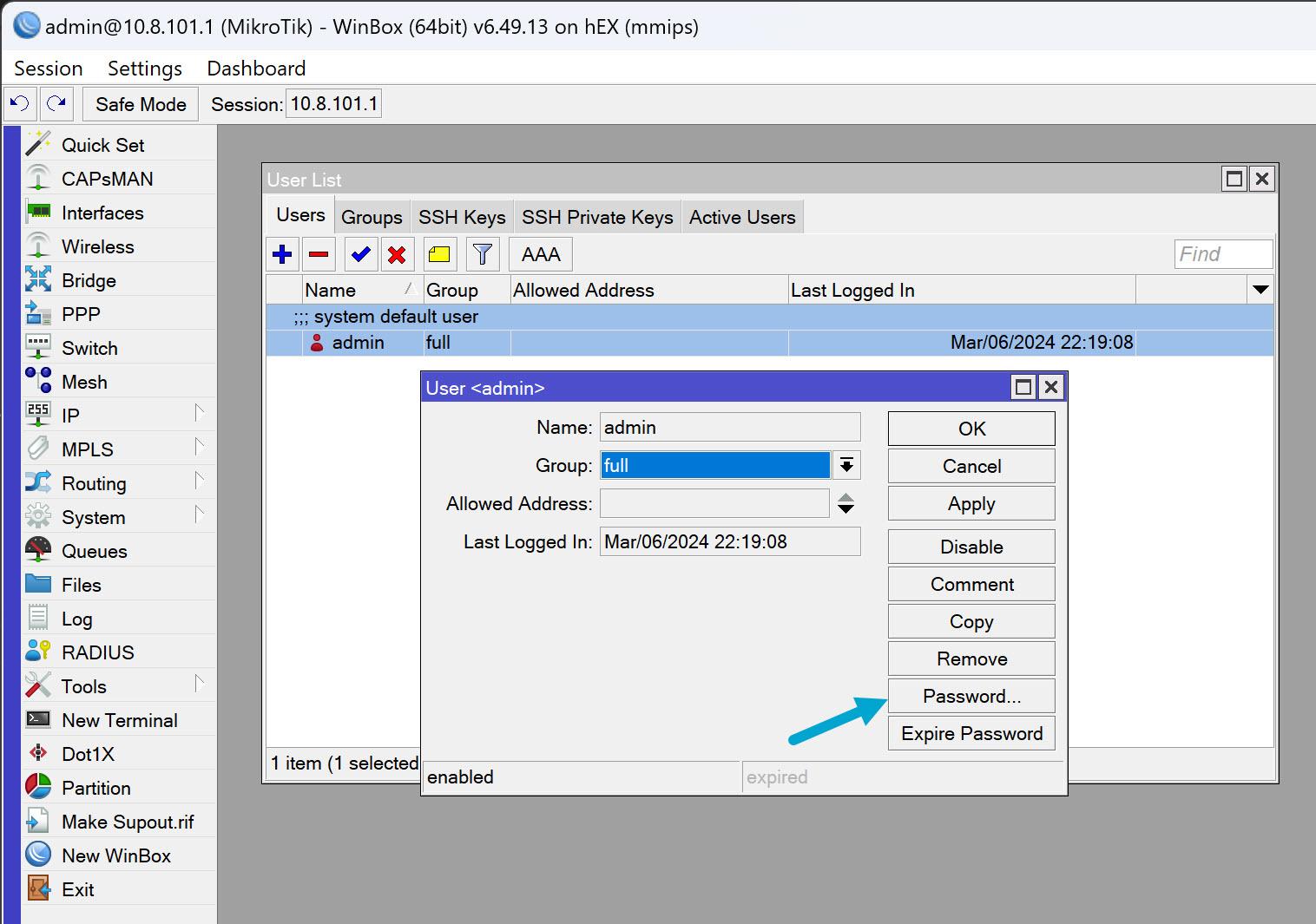
Create a separate account named ispbilling, assign the integration group, use a strong unique password and restrict permitted source addresses. Do not reuse admin.

If you provide hotspot service, copy the exact server Name, such as hotspot1. Do not confuse this with the address pool or profile.
If you provide PPPoE service, copy the actual pool name. Confirm the pool is used by your PPPoE service; do not create a duplicate.

Enter the router label, HTTPS management URL, dedicated username and password. Add your actual Hotspot and PPPoE details as applicable. Leave provisioning disabled until tested.
Save the router, verify TLS connectivity and authentication, then test provisioning with a non-production subscriber. Enable sales only after renewal and expiry tests pass.
| Field | What to enter |
|---|---|
| Router name | Your own recognizable label |
| Management HTTPS URL | Reachable https:// hostname or address, without /rest |
| API username/password | Dedicated router account credentials |
| Trusted CA certificate path | Only when your server needs a private trusted CA |
| Hotspot login URL | When configured for Hotspot |
| PPPoE gateway and pool | Use the real PPPoE settings if applicable |
| Hotspot server name | Use the actual Hotspot server name if applicable |
Note: Some versions of the current portal may mark service-specific fields as required even when the service is not used. Contact support rather than entering invented values.